TabType Reference
TabType is a macOS menu bar app that gives you universal text completion. Type ;; in any app — your terminal, editor, browser, chat — and a popup appears with completions drawn from your projects and config. Pick one with Tab or Enter, and TabType types it for you.
Why people use TabType
People usually adopt TabType for one or more of these:
- Stop retyping common messages, commands, and links.
- Complete project-aware items like git branches, npm scripts, skills, and file paths from any app.
- Keep one consistent completion workflow across terminal, editor, browser, and chat.
- Keep that workflow when you
sshinto another Mac: completions come from the machine you’re on. - Bring custom internal data into completion with custom providers.
Install
Download the latest release and drag TabType to your Applications folder:
TabType requires macOS 15 (Sequoia) or later.
Getting started
Grant accessibility permission
TabType needs accessibility access to detect ;; keystrokes and insert completions across apps. No keystrokes are recorded or stored — TabType only activates after the trigger.
On first launch, TabType opens an onboarding window. The first thing you’ll see is a permission card:
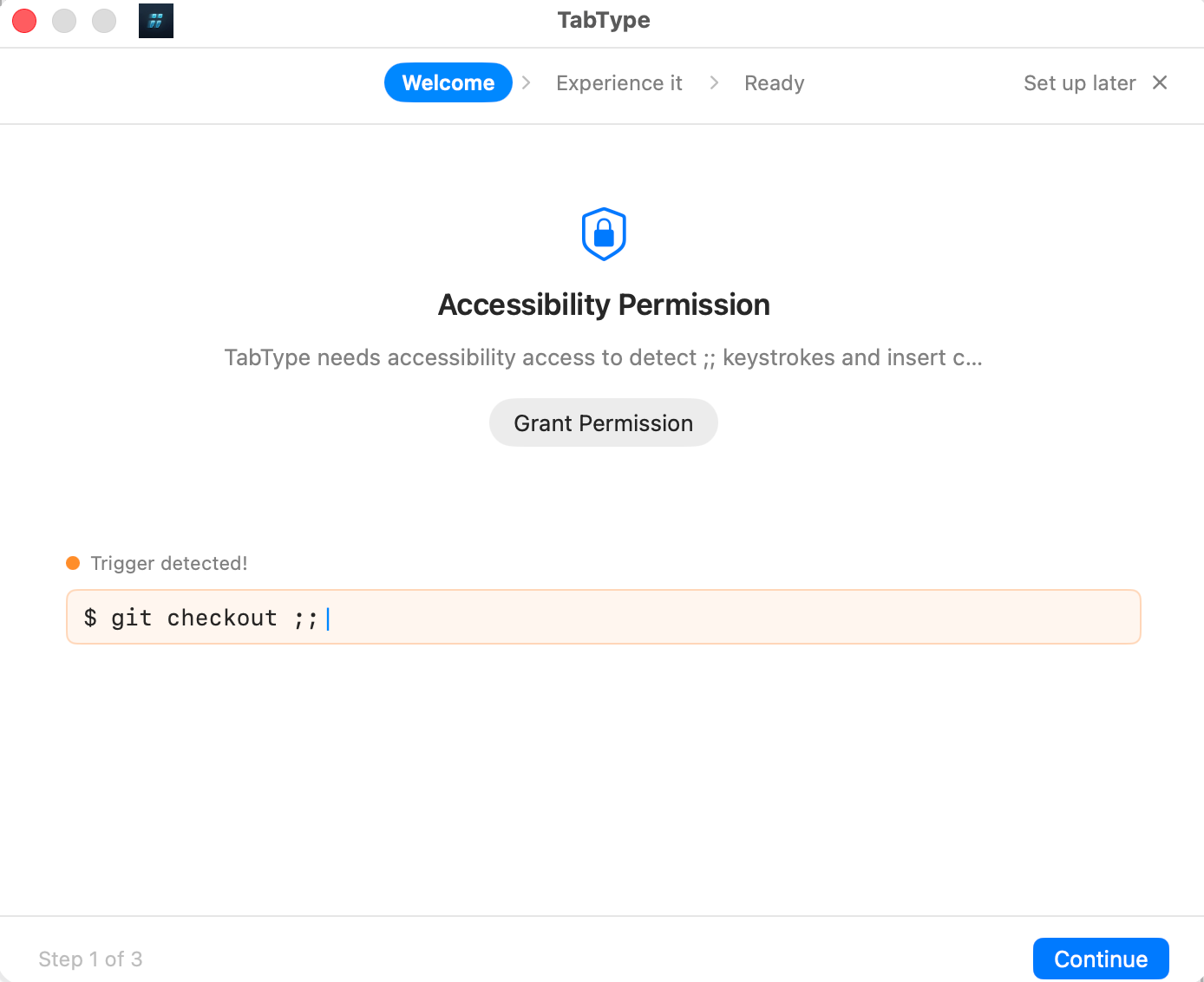
Click Grant Permission to open the macOS accessibility prompt. Then navigate to System Settings → Privacy & Security → Accessibility and enable the toggle next to TabType:
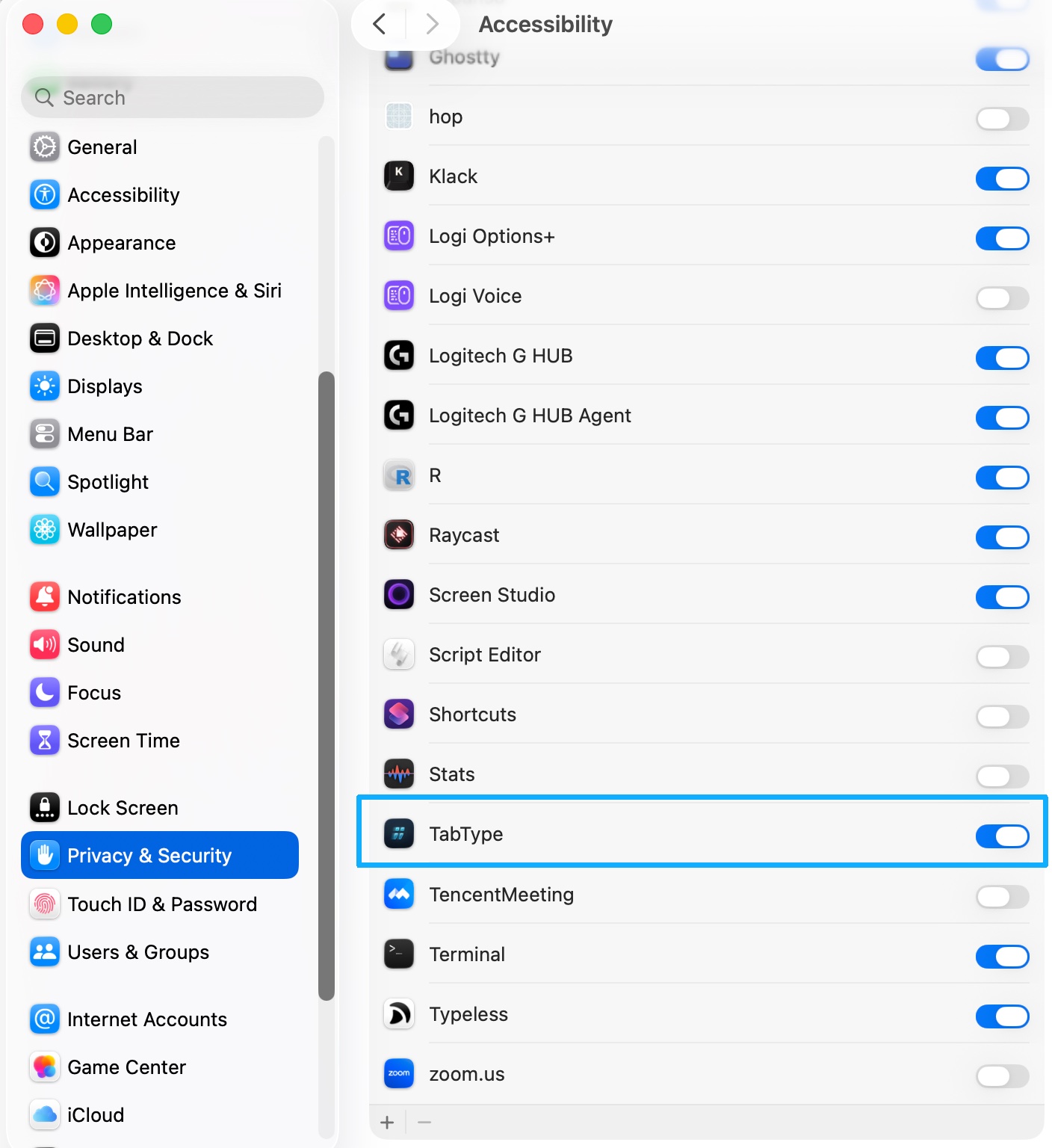
TabType detects the change automatically — no restart needed. If you skip this step, the menu bar will show a Finish Setup item so you can come back to it anytime.
Walk through the onboarding
After granting permission, walk through the remaining onboarding steps. The onboarding teaches you the ;; trigger, shows example completions across different apps, and lets you try it in a live input field. When you reach this screen, you’re all set:
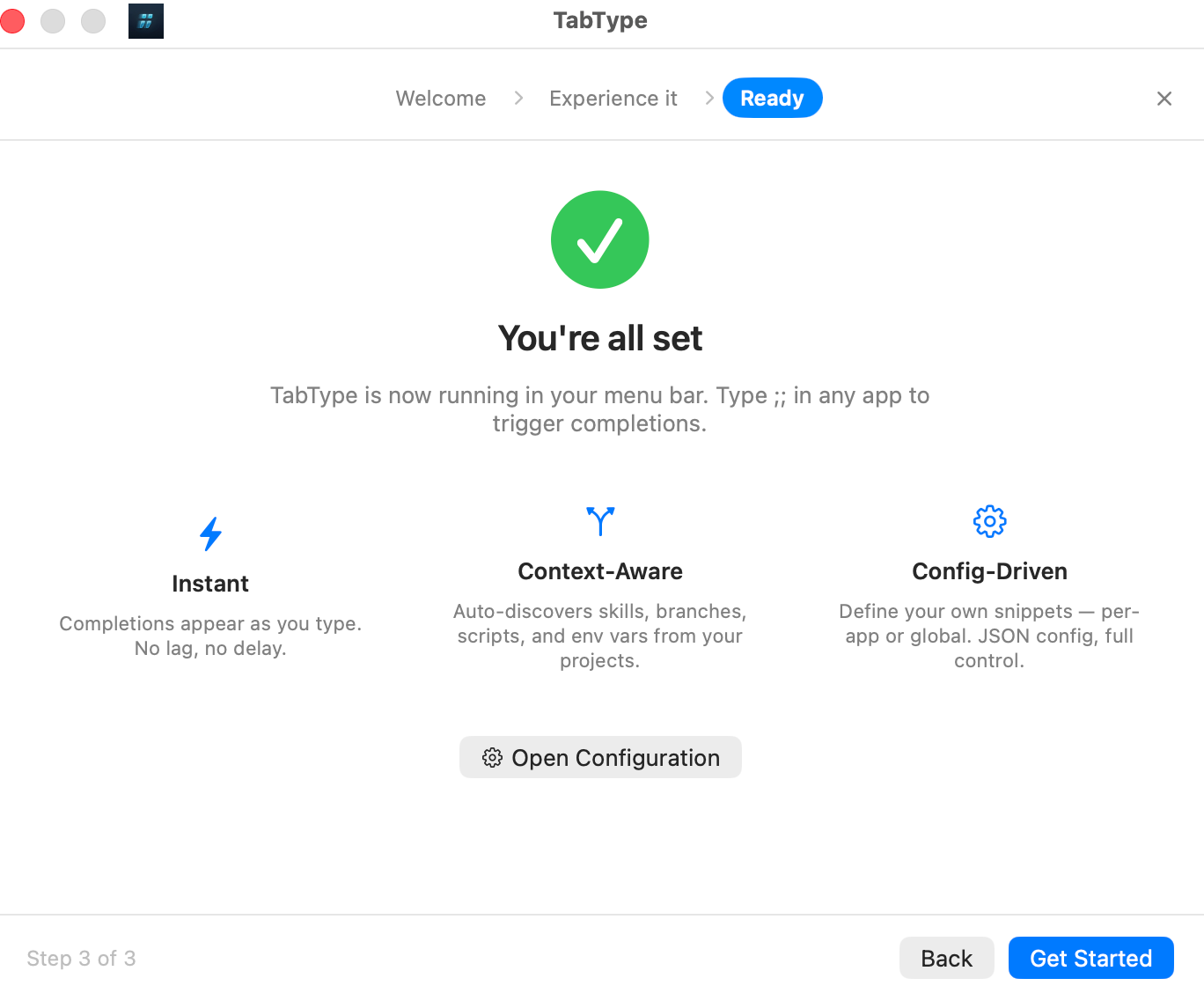
TabType now runs quietly in your menu bar. Type ;; in any app to start.
Your first snippet
Everything starts with a config file at ~/.config/tabtype/config.json. TabType creates one with a couple of example snippets on first launch, but here’s the idea:
{
  "snippets": [
    {
      "key": "sig",
      "expand": "Best regards,\nYour Name"
    }
  ]
}
Type ;;sig anywhere. The popup shows your snippet, you press Tab, and TabType replaces ;;sig with the expansion text. That’s the core loop.
The trigger defaults to ;; but you can change it in your global config with the trigger field:
{
  "trigger": "///"
}
You don’t have to edit the file by hand. Click the TabType icon in the menu bar and choose Configuration to manage snippets and settings in a window, or Edit to open the config file in your editor. Either way, changes apply as soon as they’re saved — no restart.
The config can also be written in TOML, and personal additions can live in a separate file. See Personal overrides and JSON or TOML.
Try this next
If you just installed TabType, these are quick wins:
- Add 3 personal snippets you use daily (
sig,thanks,standup). - In a repo, type
;;@gitand browse branches/remotes. - Type
;;@file readmeto jump to common file paths. - Type
;;~/and complete a path anywhere on your Mac. - Add one custom provider (bookmarks or Docker) and test
;;@your-scope. - Type
;;?for the built-in cheat sheet of scopes and shortcuts.
Snippet types
There are two kinds of snippets: text and URL.
A text snippet inserts text at the cursor. You’ve already seen one — key plus expand:
{ "key": "addr", "expand": "123 Main St, Springfield, IL 62701" }A URL snippet opens a link in your default browser instead of inserting text. Use url instead of expand:
{ "key": "docs", "url": "https://docs.example.com" }URL snippets support custom schemes like obsidian://, slack://, and vscode:// — not just https.
Every snippet must have exactly one of expand or url — not both.
Two optional fields work on either type:
label— a display name shown in the popup instead of the key. Useful when the key is short but you want something more descriptive.description— extra context shown in the detail panel when the snippet is highlighted.
{
  "key": "gh",
  "url": "https://github.com/myorg/myapp",
  "label": "GitHub Repo",
  "description": "Opens the main repository page"
}
Template variables
Text snippets can include template variables that expand when the snippet is accepted:
| Variable | Description | Example output |
|---|---|---|
{{date}} | Current date (yyyy-MM-dd) | 2026-02-20 |
{{date:FORMAT}} | Current date with custom format | {{date:MM/dd/yyyy}} → 02/20/2026 |
{{time}} | Current time (HH:mm) | 14:30 |
{{time:FORMAT}} | Current time with custom format | {{time:HH:mm:ss}} → 14:30:45 |
{{clipboard}} | Current clipboard text | (clipboard contents) |
{{uuid}} | Random UUID v4 | 550e8400-e29b-41d4-a716-446655440000 |
Format strings use Swift DateFormatter tokens (yyyy-MM-dd, HH:mm:ss). All date/time variables in a single snippet share the same timestamp, so they’re always consistent. Variables expand when you accept a snippet with Tab or Enter; copying a row with Cmd+C copies the text as written.
Snippet composition
Snippets can reference other snippets by key using the same {{key}} syntax. Built-in variables always take priority over snippet references. Composition resolves recursively up to 10 levels deep; circular references are preserved literally.
{
  "snippets": [
    { "key": "name", "expand": "Alice" },
    { "key": "sig", "expand": "Best regards,\n{{name}}" }
  ]
}
Accepting sig produces: Best regards,\nAlice.
Cursor position
Put $0 in a text snippet where the cursor should land after it’s inserted:
{ "key": "log", "expand": "console.log($0);" }Accepting log types console.log(); and leaves the cursor between the parentheses. Only the first $0 counts, and it is most reliable when the text after it stays on one line.
Built-in snippets
TabType ships with five built-in snippets available to all users. Define a snippet with the same key in your config to override any built-in.
| Key | Expansion | Description |
|---|---|---|
date | {{date:yyyy-MM-dd}} | Today’s date (ISO format) |
now | {{date:yyyy-MM-dd HH:mm}} | Current date and time |
uuid | {{uuid}} | Random UUID v4 |
paste | {{clipboard}} | Current clipboard text |
shrug | ¯\_(ツ)_/¯ | Shrug emoticon |
Scoped search
When the popup is open, @ enters scope mode:
;;@opens the full scope picker.;;@partialfilters the scope picker by alias/title.;;@scope queryruns scoped search (@git featureand@git/featureboth work).;;@@querysearches snippets for a literal@query(escape hatch).;;?opens help: every scope, its aliases, and the keyboard shortcuts.
Unknown @... input stays in scope-picker filtering mode by default (it does not fall back to normal snippet search unless you use @@).
Common examples:
;;@to open all available scopes.;;@gito filter to Git-related scopes before selecting one.;;@git featto find branches/remotes quickly.;;@file confto find file paths.;;@skill perfto find skills.;;@your-provider queryfor your custom provider.
Scope reference
Project sources:
| Scope | Short | What it shows |
|---|---|---|
@file | @f | Files in the project (fuzzy path search) |
@git | @g | Git branches, tags, and remotes |
@branch | @b | Git branches only |
@tag | @t | Git tags only |
@remote | @r | Git remotes only |
@npm | @n | npm scripts from package.json |
@make | @m | Makefile, Justfile, and Taskfile targets |
@skill | @s | AI agent skills (SKILL.md files) |
@doc | @d, @ai | Project docs (CLAUDE.md, AGENTS.md, README.md) |
@{scope} | — | Custom provider results (scope defaults to provider id) |
With nothing typed after it, @file lists the files you changed recently; start typing and it searches every file in the project.
Manual sources:
| Scope | Short | What it shows |
|---|---|---|
@user | @u, @manual | Your manual snippets from config |
@app | @a | App-scoped snippets for the current app |
Special:
| Scope | What it does |
|---|---|
@path | Completes any filesystem path — see Path completion |
@url, @link, @l | Shows only URL snippets across all sources |
Path completion
Start a query with a path and TabType completes it against the filesystem, the way your shell’s Tab key does — in any app:
;;~/dev/tab— from your home folder.;;/usr/loc— from the root.;;./srcand;;../— from the current directory of the terminal pane you’re typing in.;;@path src/comp— from the project root.
Accepting a folder inserts it with a trailing /. Names are inserted as they’re spelled on disk, whatever case you typed.
A few things make it faster than typing the path out:
- Abbreviate the folders along the way. Each part only has to single out one folder:
;;~/.co/nv/l/presolves to~/.config/nvim/lua/plugins. When a part matches several folders, the popup lists them — pick one with Tab and keep typing from there. - Skip the subfolders inside a repository.
;;~/dev/headroom/refalso offers~/dev/headroom/docs/REFERENCE.md: once the path is inside a git repository, the last part is searched through everything below it. - Hidden files stay hidden until the part you’re typing starts with a dot.
Spaces are part of the path while you’re typing one, so Space doesn’t toggle the detail panel there — Ctrl+Space does. ./ and ../ need a terminal, which is where TabType knows the current directory; elsewhere, use ~/, /, or @path.
macOS protects ~/Desktop, ~/Documents, ~/Downloads, and iCloud Drive. The first time a path leads into one of them, the popup shows a row asking for access, and accepting it brings up the macOS permission prompt. Paths you complete are never added to your history, and TabType doesn’t read the files it lists.
AI skills
TabType finds the skills your AI coding agents use, so you can point an agent at one without remembering how it’s spelled. It looks in:
- The project:
.claude/skills/,.codex/skills/, and.agents/skills/ - Your home folder:
~/.claude/skills/and~/.codex/skills/
Each folder with a SKILL.md is one skill, named by the name in its front matter, or by the folder when there is none. A project skill wins over a global one with the same name, and global skills are available even when you’re not in a project.
Accepting a skill inserts the full path to its SKILL.md. To insert just the name instead, set skill_insertion_mode:
{
  "settings": {
    "skill_insertion_mode": "name"
  }
}
The popup shows and matches the name either way.
Project configuration
When you’re working in a specific project, you can add a .tabtype.json file at the project root. This file also acts as a project marker — TabType uses it to recognize the directory as a project worth scanning.
Project config merges with your global config. You only need to include the fields you want to override:
{
  "snippets": [
    { "key": "api", "expand": "https://api.staging.example.com" }
  ],
  "settings": {
    "max_branch_age_days": 30
  }
}
The merge rules are straightforward:
- Snippets: if a project snippet has the same key as a global one, the project version wins. Unique snippets from both sides are kept.
- Settings: project values override global values per-field. Anything you don’t specify inherits from global.
- Custom providers: project providers with the same
idreplace global ones. - Categories: a project’s
providerslist replaces the global one.
Some things are yours rather than the project’s, so a project file can’t set them: trigger, app_snippets, popup_position, file_insertion_mode, and the appearance settings. A project file that tries loads without them, and the menu bar shows a warning.
Project config also supports include_paths — an array of directories to include in @file search even if they’re gitignored:
{
  "include_paths": ["build/generated", ".cache/assets"]
}
Paths are relative to the project root and have to stay inside it. Up to 10 are used.
Personal overrides
A committed .tabtype.json is shared with everyone on the project. For snippets and settings that are only yours, add a .local file next to it and keep it out of git. The same works for your global config:
| File | Applies to | Meant for |
|---|---|---|
~/.config/tabtype/config.json | Everywhere | Your snippets and settings |
~/.config/tabtype/config.local.json | Everywhere | Extras for this Mac, kept out of a synced dotfiles repo |
.tabtype.json | One project | The team — committed |
.tabtype.local.json | One project | You alone — gitignored |
Each row wins over the rows above it, merged by the same rules as project over global. One difference: include_paths in a .tabtype.local.json adds to the committed list rather than replacing it. A folder with only a .tabtype.local.json still counts as a project.
When a snippet comes from one of these files rather than your main config, its detail panel says which.
Git worktrees
A linked worktree (git worktree add) gets the committed .tabtype.json through git, but nothing copies a gitignored file into it. So in a worktree, TabType also reads the .tabtype.local.json from the repository’s main checkout. A .tabtype.local.json in the worktree itself still wins over it.
JSON or TOML
Every config file can be written in TOML instead: config.toml, config.local.toml, .tabtype.toml, .tabtype.local.toml. The keys are the same. TOML is easier to write by hand, with comments and multi-line text that needs no escaping:
# ~/.config/tabtype/config.toml
trigger = ";;"

[settings]
max_branch_age_days = 30

[[snippets]]
key = "review"
expand = '''
Review this diff for correctness.
Flag anything that changes public behaviour.
'''
Two things to know:
- If both formats of the same file exist, the TOML one is used, and the menu bar warns that the JSON one is being ignored.
- The Configuration window writes JSON. When your global config is a
config.toml, the window is read-only, so your comments and layout are never rewritten — edit the file directly instead.
App-scoped snippets
Sometimes you want snippets that only appear when a specific app is focused. Add an app_snippets array to your global config:
{
  "app_snippets": [
    {
      "bundle_id": "com.apple.Safari",
      "app_name": "Safari",
      "snippets": [
        { "key": "jira", "url": "https://jira.example.com" },
        { "key": "figma", "url": "https://figma.com/files/team" }
      ]
    }
  ]
}
Each entry needs a bundle_id and app_name. You can find an app’s bundle ID with:
mdls -name kMDItemCFBundleIdentifier /Applications/Safari.appYou can also set popup_position per app to control where the popup appears. Values: auto, top-left, top-right, bottom-left, bottom-right, center, bottom-center.
Provide your own data
If built-in sources are not enough, you can add your own provider with custom_providers.
Each provider gives you:
- Its own browser category.
- Its own scope (for example
@bookmarks). - Snippets generated from any shell command output.
This is useful for things like:
- bookmarks and internal links
- Docker/container commands
- SSH hosts
- internal API search
- project-specific helper commands
Example: bookmarks from a TSV file
If you keep shortcuts in ~/.bookmarks.tsv, expose them directly in TabType:
docs	Documentation	https://docs.example.com	Project docs
jira	Jira Board	https://jira.example.com	Team issues
fig	Figma File	https://figma.com/file/abc123	Design source
Format shown above is: key<TAB>label<TAB>expansion<TAB>description.
{
  "custom_providers": [
    {
      "id": "bookmarks",
      "label": "Bookmarks",
      "command": "cat ~/.bookmarks.tsv",
      "mode": "scan",
      "ttl": 300
    }
  ]
}
You can then browse the Bookmarks category or type ;;@bookmarks.
Custom scopes also appear in ;;@ and are filterable with ;;@bo....
Example: Docker helpers
Turn running containers into ready-to-use commands:
{
  "custom_providers": [
    {
      "id": "docker",
      "label": "Docker",
      "command": "docker ps --format '{{.Names}}\tdocker exec -it {{.Names}} bash\t{{.Image}} ({{.Status}})'",
      "mode": "scan",
      "ttl": 30
    }
  ]
}
Each row becomes a snippet you can insert in terminal, chat, or docs.
Example: live API search
Use live mode when results should depend on what you typed:
{
  "custom_providers": [
    {
      "id": "api-search",
      "label": "API Search",
      "command": "curl -s \"https://api.internal/search?q=$TABTYPE_QUERY\" | jq -c '[.results[] | {key: .id, label: .name, expansion: .id, description: .summary}]'",
      "mode": "live",
      "debounce": 300
    }
  ]
}
Type ;;@api-search your-query to run it.
Scan mode vs live mode
| Scan | Live | |
|---|---|---|
| Runs | When a project opens, on a rescan, or on manual refresh (Cmd+R) | As you type inside its scope (debounced) |
| Gets the query? | No | Yes, via TABTYPE_QUERY env var |
| Caching | TTL-based (default 30s) | No cache |
| Timeout | 10 seconds | 3 seconds |
| Use when | Data is relatively stable | Results depend on what the user typed |
Both modes receive PROJECT_ROOT as an environment variable. Live mode also gets TABTYPE_QUERY, TABTYPE_APP_BUNDLE_ID, TABTYPE_APP_NAME, and TABTYPE_CASE_SENSITIVE ("0" or "1").
Commands run with /bin/sh in the project root, so a provider has rows only while TabType has a project. A live provider answers only inside its own scope (;;@api-search …), never in a plain ;; search.
TabType is launched by macOS rather than by your shell, so it doesn’t see the PATH additions in your shell profile. When a command works in your terminal but returns nothing here, call the tool by its full path (/opt/homebrew/bin/jq).
Provider fields
| Field | Required | Default | Description |
|---|---|---|---|
id | Yes | — | Identity and category ID. Lowercase letters, digits, and hyphens. |
label | Yes | — | Category name in the browser |
command | Yes | — | Shell command whose output becomes snippets |
mode | No | "scan" | "scan" or "live" |
ttl | No | 30 | Scan mode: seconds to keep the output before running again |
debounce | No | 150 | Live mode: milliseconds to wait after a keystroke |
scope | No | id | Scope name, without the @ |
badge | No | First 4 letters of label | Badge shown on its rows |
description | No | label | Category description |
empty_hint | No | — | Text shown when the provider has nothing to list |
An id or scope can’t reuse a built-in one (git, file, …), and each must be unique. If one provider in a file is invalid, that file’s whole custom_providers block is skipped and the menu bar says why.
Provider output formats (reference)
Provider output is auto-detected. TSV (one snippet per line, tab-separated):
label
label	expansion
label	expansion	description
key	label	expansion	description
Column behavior:
- 1 col:
key=label=expansion - 2 col:
key=label,expansion - 3 col:
key=label,expansion,description - 4 col:
key,label,expansion,description
JSON (starts with [ or {):
[
  { "label": "deploy", "expansion": "deploy --env staging", "description": "Deploy to staging" },
  { "key": "stg-deploy", "label": "Deploy to Staging", "expansion": "deploy --env staging" },
  { "label": "docs", "url": "https://docs.example.com" }
]
An object that wraps the array as items works too: { "items": [ … ] }.
At most two scan commands run at once across all your providers, so a slow one delays the rest — keep them fast. Use scan mode with a reasonable TTL for stable data, and reserve live mode for when results genuinely depend on the query.
Remote sessions over SSH
When the terminal pane you’re typing in is running ssh to another Mac, TabType completes against that machine instead of yours. ;; in an ssh session offers the remote project’s branches, scripts, skills, and files, and what it inserts is true over there: a path that exists on the host, not on your laptop.
There is nothing to install on the other Mac. The first time you type ;; in a session, TabType copies a helper to the host over ssh, into ~/.local/share/tabtype/agent/, and the popup shows Connecting to mini… (with your host’s name) while it does. That happens once per TabType update; after that, connecting is quick. The host needs no license, no accessibility permission, and no menu bar app running.
What comes from where
| From your Mac | From the host |
|---|---|
| Your snippets and app snippets | Skills — the project’s, and those in the host’s home folder |
| Your settings, appearance, and category list | Git branches, tags, and remotes; npm scripts; Make targets; project docs |
| Your usage history | @file search, ~/ and / path completion, file previews |
| The custom providers you defined | The output of those providers, run on the host with the host’s tools |
The project’s .tabtype.* files, .tabtype.local.* included |
Your global config travels with you, so the host’s own ~/.config/tabtype is not read. Project config is read where the project lives: a gitignored .tabtype.local.json applies on the host only if it exists on the host. Edits on either side take effect right away, and a problem in the host’s project config shows up in your menu bar like a local one.
cd into another project on the host and the next ;; follows you. tmux on the host works too. The menu bar menu names the machine and project being served, such as mini: api.
Requirements and limits
- The host is a Mac. Other systems aren’t supported.
- A direct
sshconnection that logs in without prompting. TabType opens its own connection beside yours, with the options you used, and it can’t answer a password or passphrase prompt. Use a key your ssh agent or keychain already holds. - Not through a jump host, mosh, or Eternal Terminal. Those sessions aren’t a direct connection TabType can follow.
- Not with connection sharing. With
ControlMaster, several panes share one connection, and the host can’t tell which pane is asking. - One hop. If you ssh from the host on to a third machine, that pane goes quiet rather than describing the wrong machine.
- Protected folders on the host (Desktop, Documents, Downloads) are readable only when the host’s Remote Login allows full disk access for remote users, under System Settings → General → Sharing.
When TabType can’t serve a session, it says so — mini unavailable — your snippets only — and offers just your own snippets. It never falls back to your laptop’s files, which would be wrong on the host.
Rex sessions on another Mac
In Rex, TabType completes against the pane you’re looking at, on whichever Mac runs it. Sessions on your own Mac need nothing. A session the Rex app shows from another Mac’s Rex server is served from that Mac, as an ssh session is, once your global config says which ssh host reaches that server:
[settings]
rex_hosts = [{ server = "mini", ssh = "mini.local" }]
server is the server’s name in the Rex app, or its address; ssh is what you’d type after ssh to reach that Mac, and a host from ~/.ssh/config works. The requirements above apply to it. A session whose server has no entry gets just your snippets.
When you accept, the Rex server itself types the snippet into the pane, so text stays intact over a slow link. If the server can’t be reached in time, what you typed is left as it is rather than half-replaced.
Reference appendix
Keyboard shortcuts
| Key | What it does |
|---|---|
Tab / Return | Accept the selected row |
↑ / ↓ | Move the selection |
← / → | With an empty query: switch between the category list and its items |
Space | With a query typed: move focus to the detail panel and back, to scroll a long preview. Ctrl+Space does the same anywhere, including while typing a path. |
Esc | Close the popup, or return from the detail panel |
Cmd+C | Copy the selected row instead of inserting it |
Cmd+S | Save the selected row as a snippet in your global config |
Cmd+O | Open a URL snippet |
Cmd+R | Rescan the current project |
;;? shows these in the popup.
Settings reference
All settings live under the settings key. Theme settings are global-only — project configs can’t override them.
| Setting | Default | Description | Project? |
|---|---|---|---|
case_sensitive | false | Case-sensitive matching | Yes |
max_branch_age_days | 90 | Hide git branches older than this (0 = show all) | Yes |
skill_insertion_mode | "path" | What accepting a skill inserts: "path" (its SKILL.md path) or "name" | Yes |
file_insertion_mode | "projectRelative" | How @file paths are inserted: "projectRelative" or "filenameOnly" | No |
popup_position | "auto" | Popup anchor: auto, top-left, top-right, bottom-left, bottom-right, center, bottom-center | No |
rex_hosts | none | The ssh host for each other Mac’s Rex server, as [{ server = "…", ssh = "…" }] (Rex sessions on another Mac) | No |
font_size | 16 | Popup text size, 10–20 | No |
font_color | White on dark, near-black on light | Hex color for popup text. Ignored while Glass is active. | No |
row_padding | 7 | Vertical padding per row in pixels, 0–20 | No |
row_height | 32 | Row height in pixels, 24–40 | No |
badge_palette | "minimal" | Source badge colors: "pastel", "saturated", or "minimal" | No |
popup_width | 380 | Popup width in pixels, 300–600 | No |
detail_width | 270 | Detail panel width in pixels, 180–400 | No |
material | "glass" on macOS 26+, "solid" on older versions | Popup material: "glass" or "solid" | No |
appearance | "dark" | Solid popup appearance: "dark" or "light" | No |
A size outside its range is brought back to the nearest allowed value, with a warning in the menu bar.
scan_depth and ignore_patterns from earlier versions no longer do anything: @file follows the project’s .gitignore. A config that still sets them loads fine, with a warning, and you can delete them.
Appearance
In Preferences, Appearance is a single picker with Glass, Dark, and Light.
- Pick
Glassto use Liquid Glass when available. - Pick
DarkorLightfor a solid popup style. - If Glass is unavailable (older macOS or Reduce Transparency enabled), TabType keeps your Glass preference and shows a small note explaining why it’s not active right now.
font_coloronly applies to the solid styles.
Equivalent config example:
{
  "settings": {
    "material": "glass",
    "appearance": "dark"
  }
}
Browser categories
When you open the popup with an empty query, it shows a browser with sidebar categories. The providers array in your config controls which categories appear and in what order:
{
  "providers": ["recent", "files", "skills", "git", "scripts", "manual"]
}
The default order is: recent, files, app, manual, skills, git, docs, scripts. Remove a category ID to hide it, or reorder the array to change order. Unknown IDs are silently ignored. Custom providers are always shown, appended to the list when it doesn’t name them — to hide one, remove it from custom_providers.
Removing a category turns its source off, not just out of sight: nothing is scanned or watched for it, and its rows leave search too.
When ;; does nothing
- Setup isn’t finished. Without accessibility permission TabType can’t see the trigger. The menu bar menu shows Finish Setup.
- macOS Secure Input is on. While a password field has focus, macOS hides keystrokes from every other app, so
;;can’t be seen anywhere. Some apps keep it on in the background for as long as a password window stays open. The menu bar menu reads Completions paused by Secure Input, and completions come back by themselves once it’s released. - The trial has ended. The menu bar menu reads Trial Expired until a license is activated.
- The config has a problem. A file that doesn’t parse is skipped while the others still apply, and an invalid value is ignored in favor of the default. The menu bar menu says what’s wrong and in which file.